Fix Internal JSON-RPC Error on MetaMask & Custom Networks Easily
Running into an internal JSON-RPC error can stop you, especially if you’re trying to use your MetaMask browser extension or interact with blockchain networks. These errors disrupt communication between your wallet and the network provider, leading to failed transactions and user frustration.
You might be just about to execute a transaction or test a new smart contract when you see a cryptic error message like “internal JSON-RPC.” It might say there’s a bad or invalid payload, insufficient native tokens, or no response from the RPC URL. You might try switching to other networks or updating the wallet, but nothing seems to work. The message’s lack of clarity and technical complexity only make it worse.
However, don’t worry. This guide will walk you through actionable steps to fix internal JSON-RPC errors. Whether using MetaMask, dealing with sidechains, or experimenting with a custom network, you’ll find easy-to-follow fixes here.
What Is an Internal JSON-RPC Error?
To fix it, first, understand it.
- JSON (JavaScript Object Notation) is a data format.
- RPC (Remote Procedure Call) is a method for running functions remotely.
- JSON-RPC combines the two, enabling web apps and servers to communicate over blockchain networks.
When something breaks in that connection, an internal JSON-RPC error is triggered. This generally means your MetaMask wallet or DApp cannot talk properly to the network provider through the JSON-RPC protocol.
Misconfiguration, outdated versions, or insufficient resources like gas fees often cause this.
Fixing Internal JSON-RPC Errors on MetaMask
1. Verify That the Network Is Added Correctly
Errors often occur when a network is not added correctly. Check the RPC URL, Chain ID, and other values. Any mistake in these can trigger an RPC error.
You can add a network in two ways:
A. Using services like ChainList
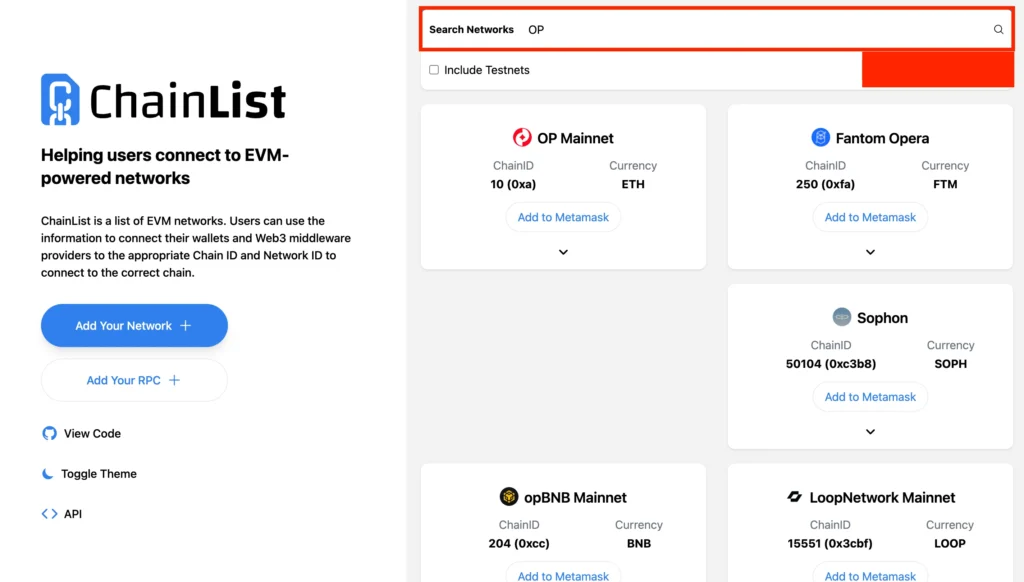
1. Go to ChainList, click “Connect Wallet,” select your MetaMask account, and approve the connection. Then, search for the desired network.
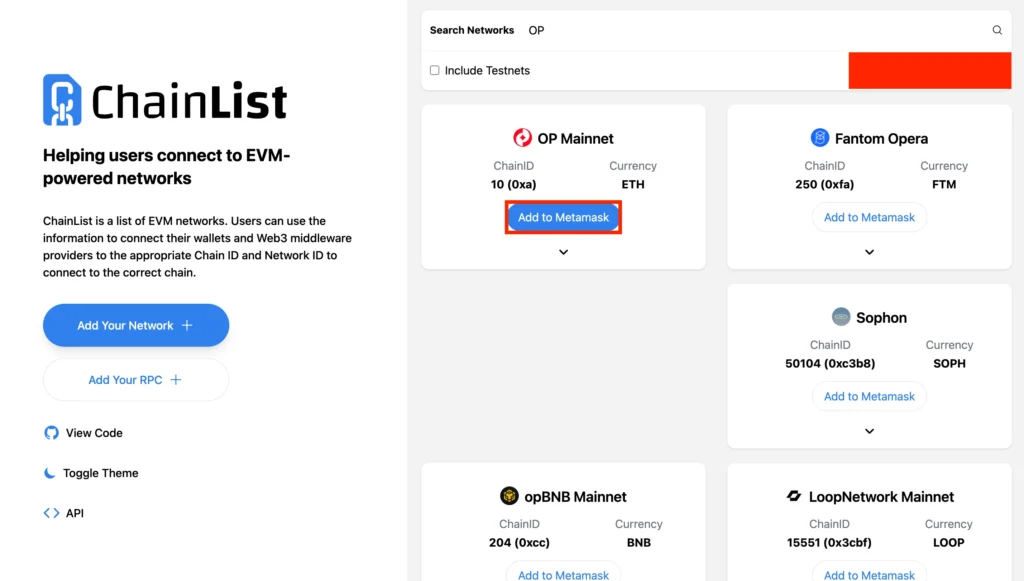
2. Click “Add to MetaMask.”
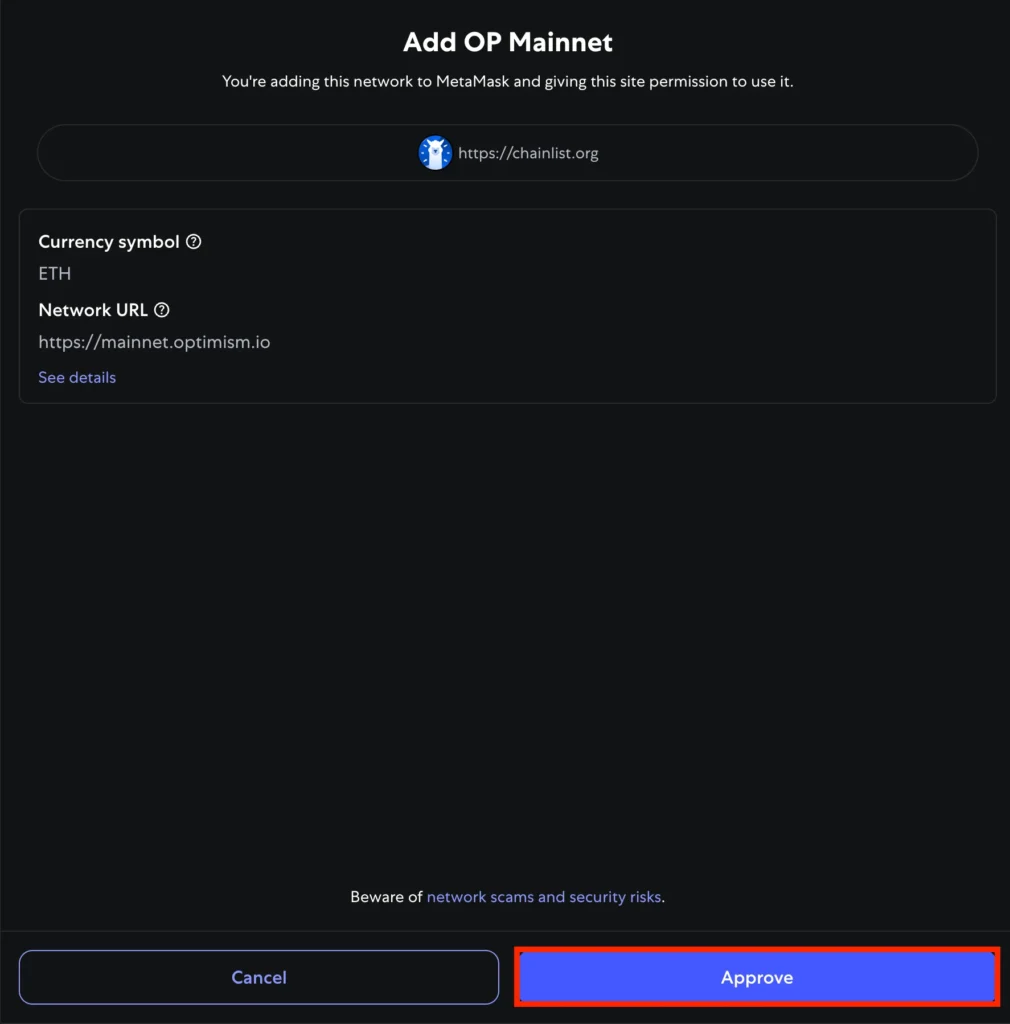
3. Approve the request and click “Switch Network.”
B. Adding Manually
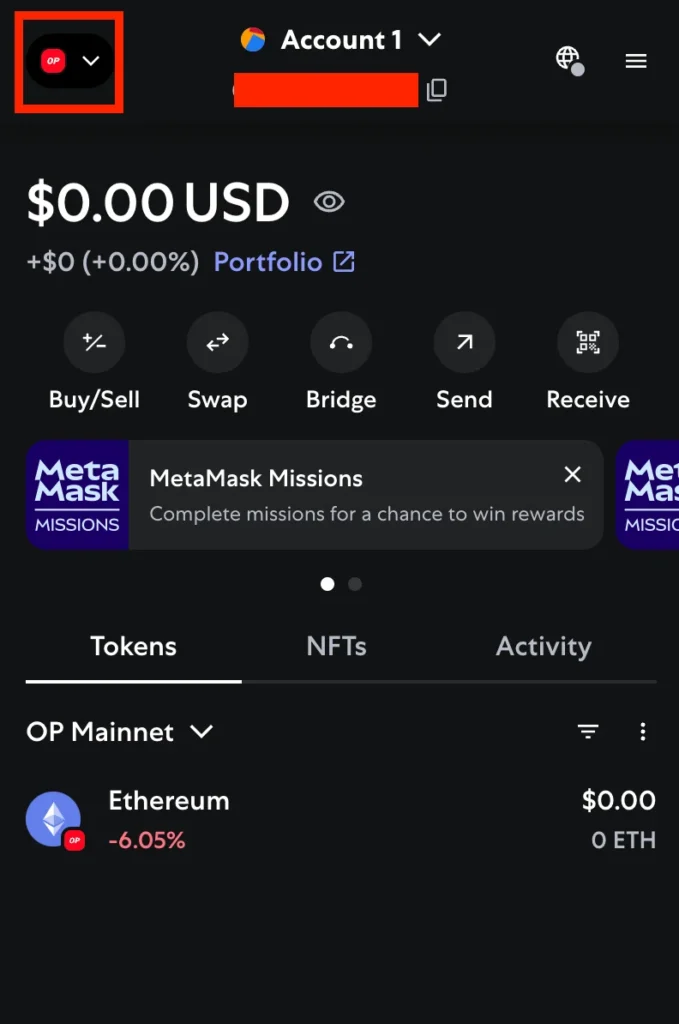
1. Open MetaMask, and click the network dropdown at the top of the extension.
2. Click “Add a custom network.”
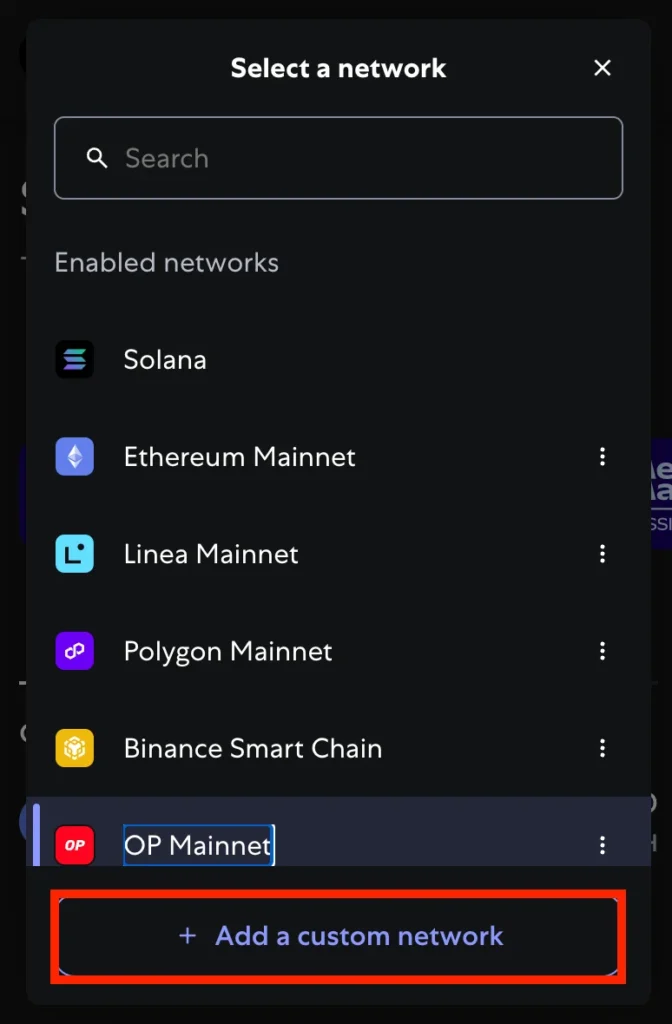
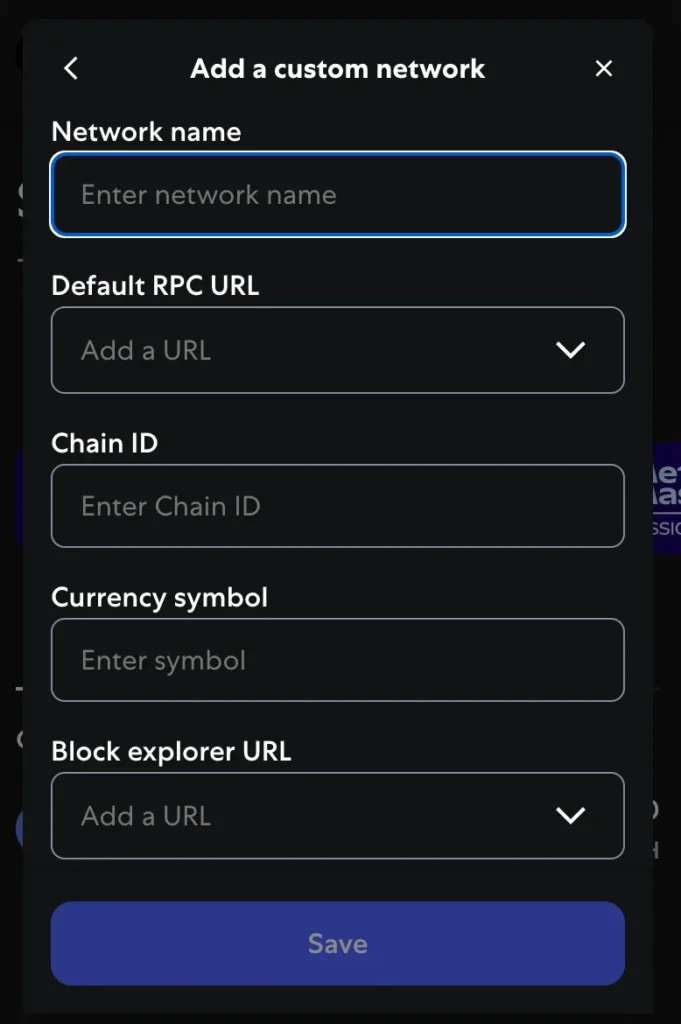
3. Enter the required details and then click “Save”:
- Network Name;
- Default RPC URL;
- Chain ID;
- Currency Symbol (optional);
- Block Explorer URL (optional).
Pro Tip: You cannot remove the Ethereum Mainnet. But you can test with different networks.
2. Ensure You Have Enough Native Tokens
Each transaction requires native tokens to cover gas fees. If your wallet doesn’t have enough tokens (like ETH on Ethereum or POL on Polygon), the transaction will fail with an error.
Fix: Transfer enough native tokens to your wallet before retrying.
3. Update MetaMask to the Latest Version
An outdated extension or app can trigger internal JSON errors due to compatibility issues.
Steps to update:
- For browser: Visit the Chrome Web Store, find MetaMask, and update.
- For mobile: Use the App Store or Google Play to install the most recent version.
4. Check Your Hardware Wallet Connection
If you’re using a Ledger device, improper connection settings can result in internal JSON-RPC errors. Always use the latest version of Ledger Live and MetaMask.
Steps:
- Open Ledger Live and ensure it’s up to date.
- Open MetaMask and go to the top-left account icon.
- Select “Connect Hardware Wallet.”
- Choose Ledger and click Continue.
- MetaMask will scan for your device using WebHID.
- Select the correct account(s) and complete the connection.
Note: Newer versions of MetaMask now automatically use WebHID as the default connection method on Chrome. The previous “Preferred Ledger connection type” option in older versions has been deprecated and may no longer be available.
Fixing Internal JSON-RPC Errors on Custom Networks and Sidechains
Interacting with custom networks and sidechains introduces more complexity. Use these best practices:
- Research the Network Provider – Not all network operators offer the same reliability. A faulty or malicious provider may misreport transactions or cause internal JSON-RPC issues.
- Double-Check Network Information – Only use verified details. A typo in the RPC URL or Chain ID can result in invalid payload errors.
- Use Established Bridges – Avoid moving assets directly between blockchain networks. Instead, use established bridges to handle crypto assets safely.
- Avoid Direct Transfers Between Networks – Transferring assets directly from one chain to another can lead to permanent loss. Always verify paths using bridges or portals.
- Understand Network-Specific Gas Fees – Each network has its own transaction fees, paid in its native tokens. For example, BNB on BSC or AVAX on Avalanche. Always check you have enough tokens to cover gas fees.
FAQ
What does the Internal JSON-RPC error mean?
Using the JSON-RPC protocol, it signals a breakdown in the communication process between MetaMask and a network provider.
How do I fix the error on MetaMask?
Check the network settings, ensure you have enough tokens, update to the latest version, and verify hardware wallet connections.
Can this error happen on other networks?
Yes. It can occur across different networks, especially custom networks or sidechains with unverified RPC URLs or insufficient technical knowledge during setup.
Can I use one network for all my assets and transactions?
Not exactly. The Ethereum ecosystem consists of multiple networks with their tokens and configurations. While you can use one network like Ethereum Mainnet for many things, some DApps or tokens operate on other networks, requiring you to switch between them in MetaMask.
Why does MetaMask show an error after I re-add a network?
Cached data, lingering session states, or rate limits from the network provider could cause this. After re-adding a network, clear your browser cache, restart the MetaMask extension, and try again. Also, ensure the code and configuration values, like the RPC URL and Chain ID, are correct.
Do I need to be a developer to fix this?
No. With the guide above, even users without deep technical knowledge can fix the error.
Where can I find the default RPC URL for MetaMask?
The default RPC URL for each network can be found on the official blockchain website or on aggregators like CoinMarketCap and ChainList.
Final Thoughts
An internal JSON-RPC error is frustrating but fixable. Most issues stem from minor oversights, such as verifying network configuration or ensuring you have enough native tokens.
Use the MetaMask wallet confidently. You’ll reduce errors and improve your experience across all blockchain networks with the proper steps and basic troubleshooting.