How to Add USDT to MetaMask in 2026
Anyone trying to add USDT to a MetaMask wallet in 2026 probably noticed one thing pretty fast. Most guides online still use screenshots from older versions of the interface. Buttons moved. The layout changed. And the steps look nothing like what you see on your own screen. You are getting the updated version that matches […]
Anyone trying to add USDT to a MetaMask wallet in 2026 probably noticed one thing pretty fast. Most guides online still use screenshots from older versions of the interface. Buttons moved. The layout changed. And the steps look nothing like what you see on your own screen.
You are getting the updated version that matches the current MetaMask browser extension. If you are using the mobile app, the steps follow the same pattern, so you will have no trouble completing them there as well.
Let’s get your USDT ready inside your wallet and make sure every detail is correct before you start sending funds.
Can You Add USDT to MetaMask?
Yes, you can add USDT to a MetaMask wallet, provided you select the correct network and paste the corresponding contract address. However, an incorrect token address often results in the token not being visible. Also, using the wrong network can result in the permanent loss of funds.
USDT is supported on several networks within MetaMask, allowing you to choose the one that best suits your needs. The most used networks for the USDT token inside MetaMask are:
- Ethereum Network
- Binance Smart Chain (also called BNB Smart Chain)
- Polygon
- Avalanche
- Optimism
- Arbitrum and other networks.
Each network has its own contract address for USDT. Please note that you cannot mix them, so double-check the one you are using before proceeding.
How to Add USDT to MetaMask Using the Browser Extension
The steps below follow the current layout of the MetaMask browser extension. If you’re on a mobile device, the menus may appear slightly different, but the process remains similar and follows the same steps.
- Copy the Correct USDT Contract Address
You need the correct contract address before proceeding. You can get it from the official USDT page on CoinMarketCap, CoinGecko, or directly from the blockchain explorer of your chosen network. Here is what to look for:
– The contract address must match the network you plan to use (in our example, Ethereum).
– The token symbol must read USDT.
– The explorer and platform must be legitimate.
A wrong contract address is one of the most common reasons why people do not see their token after importing it.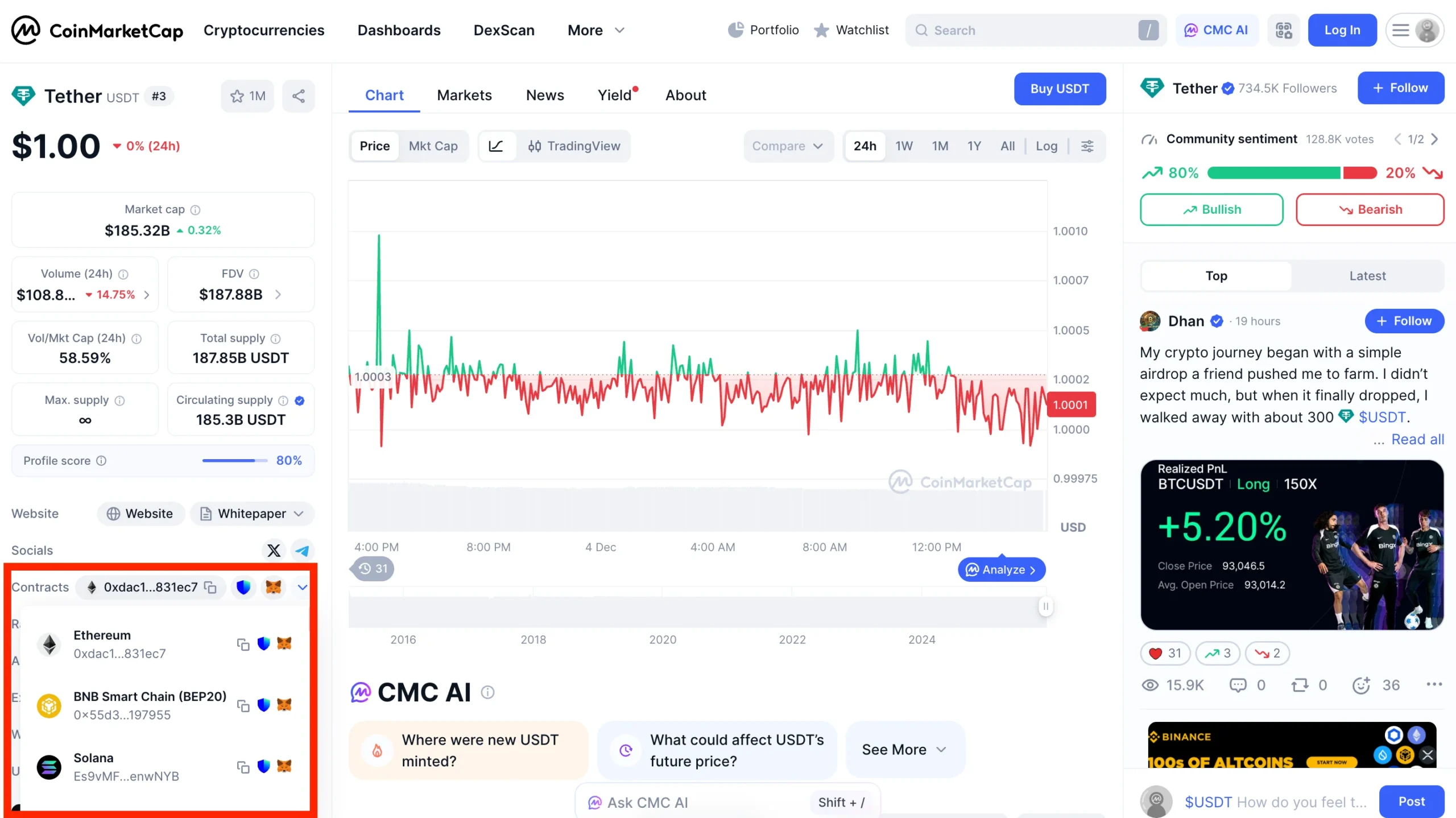
- Unlock Your MetaMask Wallet
Open the MetaMask browser extension and enter your password. Your account loads instantly. If you are restoring on a new computer, you will need your recovery phrase. However, you should never enter private keys anywhere except in the actual MetaMask app.
Inside the main dashboard, you will see your account name, a shortcut to your wallet address, and a list of your assets.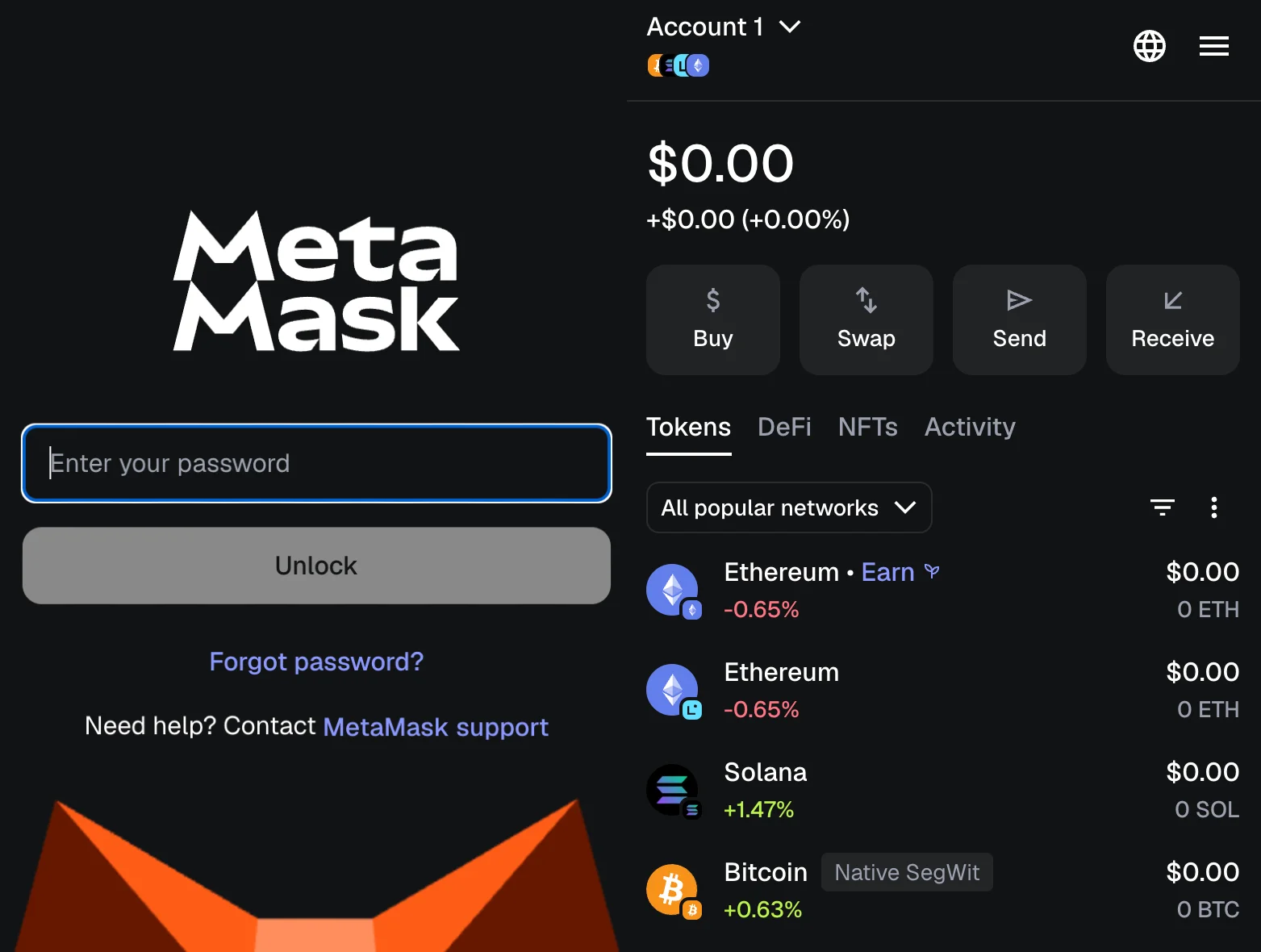
- Pick the Correct Network
Click the network selector at the top of MetaMask. Choose the specific blockchain where you want to add the USDT token. Examples:
– Ethereum Mainnet
– BNB Smart Chain
– Polygon
– Avalanche
– Optimism
– Arbitrum
Choosing the wrong network will cause the token to remain invisible because it cannot be loaded onto a different chain.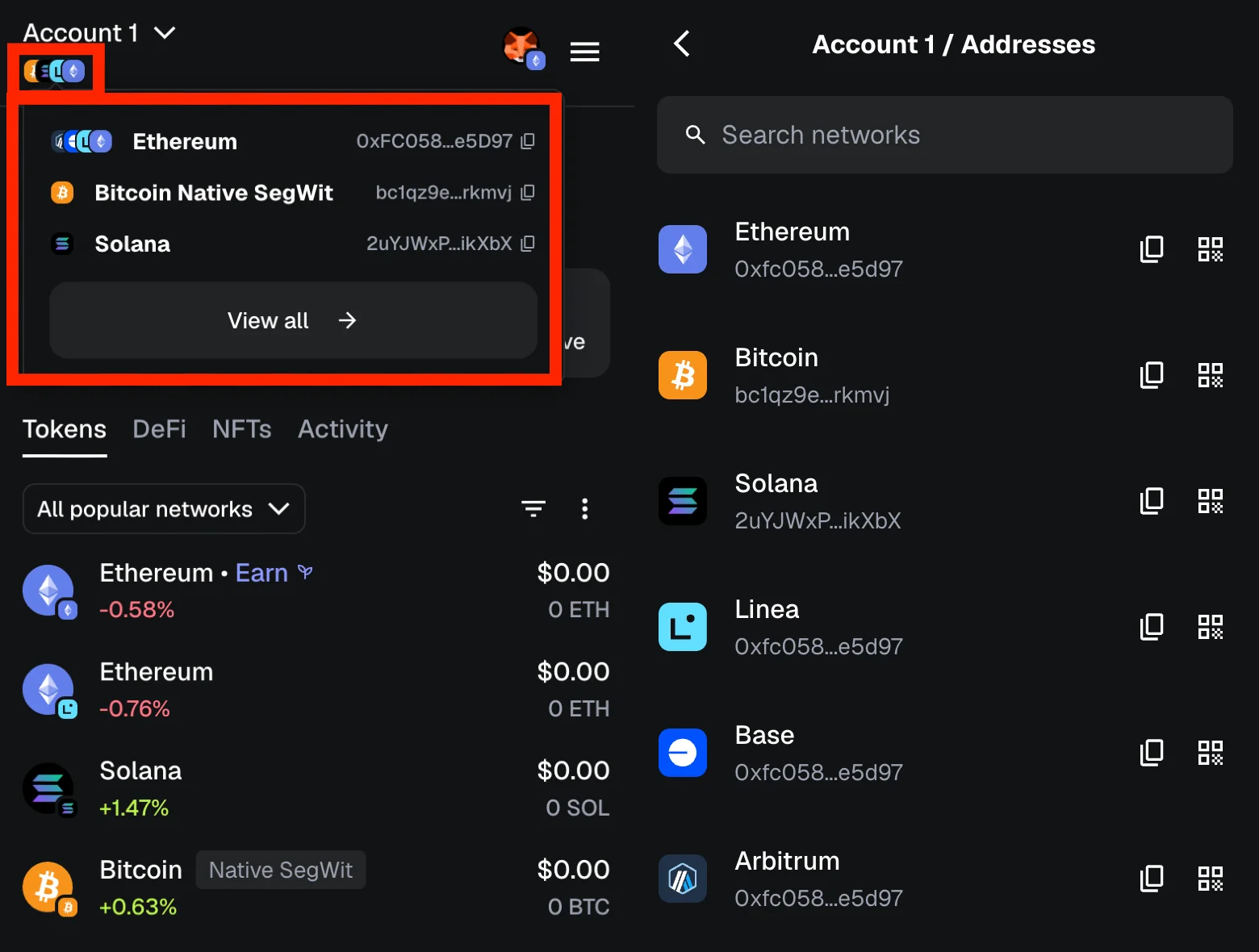
- Click on Import Tokens
On the updated MetaMask homepage, look at the Tokens section and tap the three-dot button in the upper corner. Select Import Tokens from the menu that appears. MetaMask then shows two tabs:
– Search
– Custom Token
USDT sometimes appears in the Search tab under popular tokens, but this depends on the network you are using. Many users still prefer manually adding it to avoid selecting the wrong token.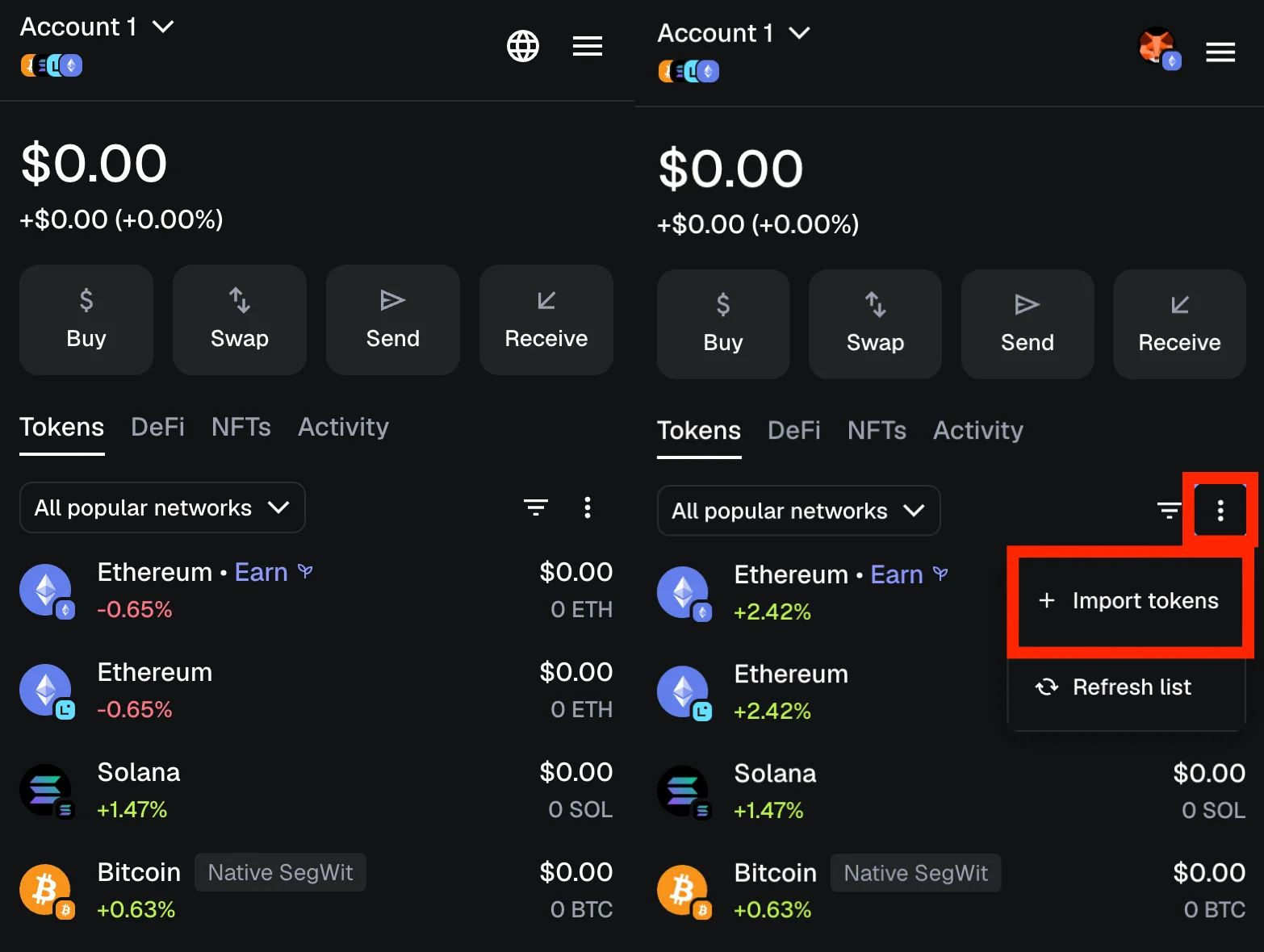
- Add USDT as a Custom Token
Select Custom Token. Paste the USDT contract address you copied earlier into the Token Contract Address field. MetaMask automatically fills in the token symbol and token decimals.
If it does not fill in, something is wrong, so verify the address one more time.
Click Next to continue. A confirmation screen appears. Select Import. Your USDT token is now displayed in the assets section of your wallet.
You can view your balance, send USDT to any valid address, check each transaction, and manage your tokens from the Tokens tab.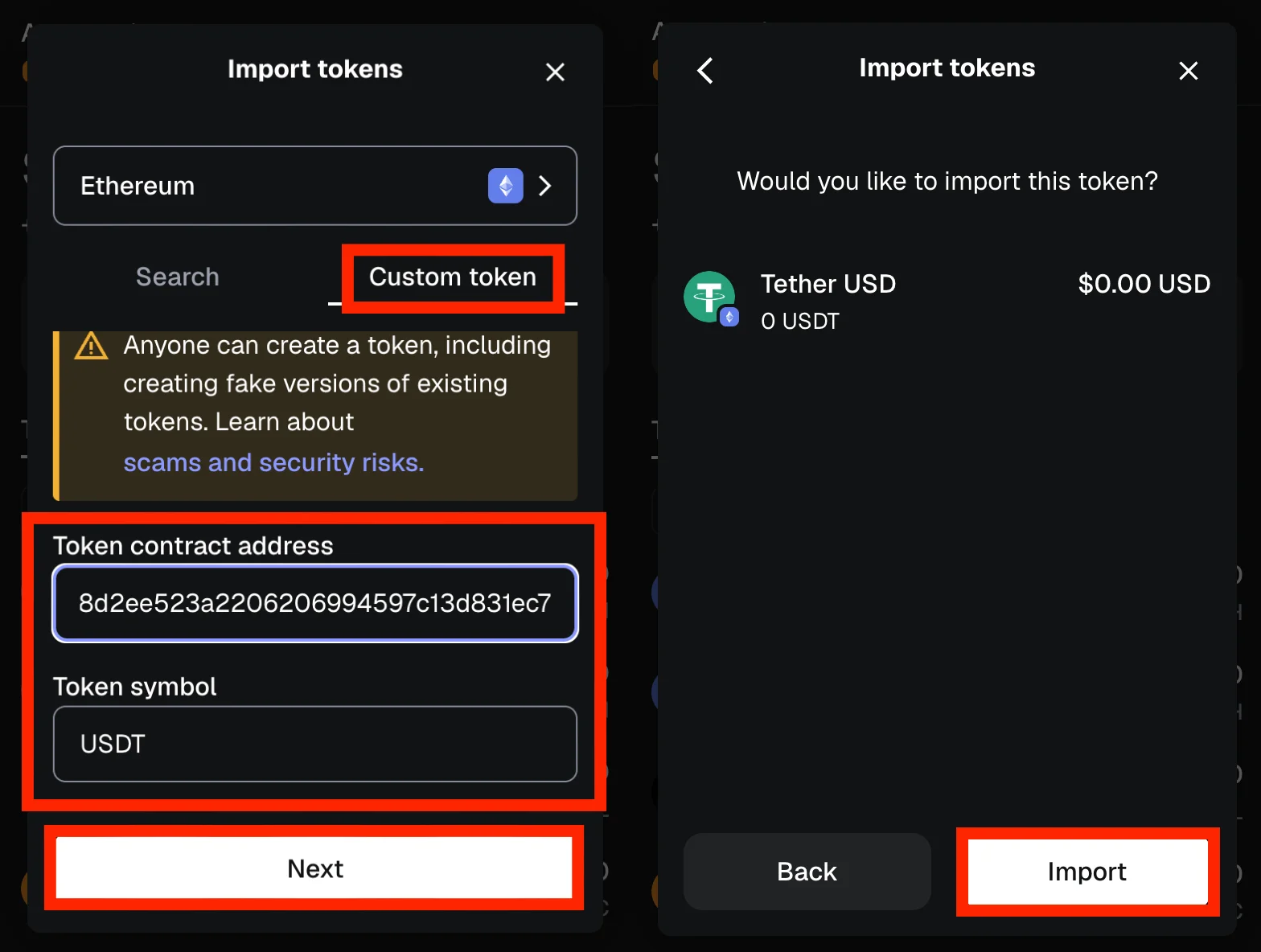
Common Problems When Adding USDT
- USDT not showing under assets – The most common reason is an incorrect network selection. Switch to the correct network and the USDT token appears immediately. If it still does not show, import tokens manually by pasting the correct contract address.
- Contract address rejected – This typically occurs when the token address does not match the selected network. Verify the correct contract address for that specific blockchain, then try again.
- Gas fee errors – Some networks require their native coin to process the transaction. Add a small amount of ETH, BNB, POL (ex-MATIC), or the required coin to cover the gas fee before sending USDT.
- Sent USDT to the wrong network – A cross-chain mistake can lead to permanent loss unless you control wallets on both chains and use trusted third-party bridges. Always double-check the network and address before you transfer USDT.
FAQ
MetaMask is a browser extension and mobile app that works as a crypto wallet for Ethereum and other supported networks. You use it to manage tokens, connect to Web3 apps, interact with smart contracts, and control your own funds with private keys that stay on your device. Many users combine MetaMask with a hardware wallet for stronger security.
USDT, also called Tether, is a stablecoin backed by the US dollar. People use it because the value stays close to 1 USD, which makes it easier to store funds, reduce volatility and move money across a specific blockchain without worrying about price swings. You can store USDT, send USDT and handle all your USDT transactions with the MetaMask wallet as long as you use the correct network and correct contract address.
Yes. Tether is the company, and USDT is the token. People use the terms interchangeably.
If a token does not show up, you can add it manually. On the main page, open the tokens tab, press the three-dot menu, and select Import Tokens. Choose Custom Token, paste the token address, check the token symbol that loads, then confirm. The token will appear under your assets once the import is complete.
No, you do not need your MetaMask wallet address for the import step. MetaMask’s addition of USDT relies solely on the contract information, not your receiving address. All you need to do is select the correct network, open the token menu, and click ‘Import’. You will need your address only when you want to receive USDT from another account. Keep your default network in mind so that the funds arrive at the expected location. For security, avoid entering your address on unknown websites and disregard any blocked or suspicious prompts when logging in.
No, MetaMask does not support TRC20 tokens because the Tron network is not included in the list of supported networks. You can add USDT only on chains that MetaMask supports, such as Ethereum, BNB Smart Chain, Polygon, Arbitrum, Optimism, and other networks available inside the extension.
Yes. Select the BNB Smart Chain network inside MetaMask, then paste the correct USDT token address for that chain.
Yes, as long as you protect your account and avoid sharing your seed phrases or private keys.
MetaMask does not automatically scan the millions of existing smart contracts. This is primarily a security measure to protect users from seeing and interacting with fake or scam tokens (dusting attacks). To view a token like USDT, you must manually provide the official contract address so the wallet knows exactly which specific contract to query on the blockchain.
Yes, just pick the correct network for each version of the token and import them separately.
If you’re looking for alternative options, the most common choices include Trust Wallet, Coinbase Wallet, Ledger, and Trezor. These wallets support USDT on multiple blockchains, providing easy access to your assets. A hardware wallet, such as Ledger or Trezor, offers the strongest security if you want to protect your funds offline.
Final Tips Before Sending Funds
Adding USDT to MetaMask is easy once you know the updated steps.
Always keep these points in mind before sending any cryptocurrency.
- Double-check the token address.
- Double-check the network.
- Ensure you have sufficient balance for the gas fee.
- Keep your security details private.
Once USDT is added, you can send, receive, store, and manage it, along with all your other tokens, directly inside your MetaMask wallet.